Preface, or how everything starts in a tavern…
Following the part 1, the next meaningful step is to start working towards a custom AOSP build, based on Nougat 7.1.2, the latest version available for the Nexus 7 codename Tilapia.
Of course, no one wants to flash a just-built ROM on the only device available, so before getting to that step it was important to test the build locally, in an emulator. The choice obviously went toward the built-in Android Studio emulator, which is more or less the standard for this kind of stuff, and to the core it’s nothing but a hardened QEMU version.
At this point I was ready to build, clone, make, test, be happy!
No.
Let’s get to how I spent two days compiling, making and cursing to QEMU for two days straight, after understanding I choose the completely wrong build target and recompiling everything for three times.
The build environment setup, or the character stats rolls
First of all, the foundational thing to do is to install a WSL2 ecosystem, since for me dual boot is not an option and so is a Virtual Machine made via VirtualBox or some other tools, making WSL2 the only viable option. The main concern is the slowness of I/O between the WSL2 machine and the Windows system mount it does, but it’s completely out of the game if the build happens completely in the WSL2 ecosystem and the files are just copied to Windows mount once done.
Keeping in consideration the quite old AOSP version, Ubuntu v20.04 seems a nice fit, with all the needed packages. There’s quite some stuff to be installed to be sure everything compiles correctly, and that’s only the environment preparation.
sudo apt update && sudo apt upgrade -y && sudo apt install -y \
  git-core \
  gnupg \
  flex \
  bison \
  build-essential \
  zip \
  curl \
  zlib1g-dev \
  gcc-multilib \
  g++-multilib \
  libc6-dev-i386 \
  libncurses5 \
  libncurses5-dev \
  x11proto-core-dev \
  libx11-dev \
  libgl1-mesa-dev \
  libxml2-utils \
  xsltproc \
  unzip \
  fontconfig \
  openjdk-8-jdk
Important note: if you have multiple java installations, just choose Java 8 like this
sudo update-alternatives --config java
sudo update-alternatives --config javac
After this, let’s just mkdir android to create the working directory, to keep everything nice and clean, and let’s go with the installation of the repo tool.
mkdir -p ~/bin
curl https://storage.googleapis.com/git-repo-downloads/repo > ~/bin/repo
chmod a+x ~/bin/repo
echo 'export PATH=~/bin:$PATH' >> ~/.bashrc
source ~/.bashrc
At this point, proceeding with the clone of the repo is the next thing to do, but which repo? My first thought is to go with LineageOS but do I really need LineageOS? Of course not, considering two things:
- the tablet itself runs with LineageOS now and it’s quite slow and clunky
- the source code of LineageOS 14 isn’t available anymore
cd android
repo init --depth=1 -u https://android.googlesource.com/platform/manifest -b android-7.1.2_r36
repo sync -c --no-tags -j8
The vendor blobs is something that can be dealt with also in the future, it’s an emulator build after all.
The platform nightmare, or “What do I do with five 10s??”
After all this stuff, it’s possible to start the build, with this two commands
source build/envsetup.sh
lunch
At this point, lunch gives you various options, that’s where I did my first mistake.
user@WSL:~/android$ lunch

You're building on Linux

Lunch menu... pick a combo:
    1. aosp_arm-eng
    2. aosp_arm64-eng
    3. aosp_mips-eng
    4. aosp_mips64-eng
    5. aosp_x86-eng
    6. aosp_x86_64-eng
    7. full_fugu-userdebug
    8. aosp_fugu-userdebug
    9. aosp_grouper-userdebug
    10. aosp_tilapia-userdebug
    11. full_tilapia-userdebug
    12. mini_emulator_arm64-userdebug
    13. m_e_arm-userdebug
    14. m_e_mips-userdebug
    15. m_e_mips64-eng
    16. mini_emulator_x86-userdebug
    17. mini_emulator_x86_64-userdebug # --> The culprit is here <--
    18. aosp_dragon-userdebug
    19. aosp_dragon-eng
    20. aosp_marlin-userdebug
    21. aosp_sailfish-userdebug
    22. aosp_flounder-userdebug
    23. aosp_angler-userdebug
    24. aosp_bullhead-userdebug
    25. hikey-userdebug
    26. aosp_shamu-userdebug
Not having much knowledge of this, I went for the mini_emulator_x86_64-userdebug build. Now, let’s say it’s a bit misleading but as far as I understood, that target is more oriented towards a CI/CD testing, since it’s a very very minimal Android distribution. Nevertheless, let’s see what happens if you try to run this in an emulator.
source build/envsetup.sh
lunch mini_emulator_x86-userdebug
m -j$(nproc)

# ...

error: ro.build.fingerprint cannot exceed 91 bytes: Android/mini_emulator_x86_64/mini-emulator-x86_64:7.1.2/N2G48H/wslus12231940:userdebug/test-keys (96)
[ 35% 13695/38461] target C++: libLLVMCore <= external/llvm/lib/IR/Function.cpp ninja: build stopped: subcommand failed. make: *** [build/core/ninja.mk:149: ninja_wrapper] Error 1
Okay, so seems like the generated build fingerprint is too long, exceeding the 91 bytes assigned by five bytes. At this point, we need to modify the build/tools/buildinfo.sh to cut down the string, like this
ro.build.fingerprint=$(echo $BUILD_FINGERPRINT | cut -c1-91)
rm -rf out/target/product/mini-emulator-x86_64/obj/ETC/system_build_prop_intermediates
Nevertheless, even after this modification the build kept on blocking itself, so let’s just do a more deep intervention: the key point is to modify the device/generic/mini_emulator_x86_64/mini_emulator_x86_64.mk in such a way the product names and details are shorter, obtaining the following
$(call inherit-product, device/generic/x86_64/mini_x86_64.mk)

$(call inherit-product, device/generic/mini-emulator-armv7-a-neon/mini_emulator_common.mk)

PRODUCT_NAME := mini_x64
PRODUCT_DEVICE := mini_x64
PRODUCT_BRAND := AOSP
PRODUCT_MODEL := mini_x64

LOCAL_KERNEL := prebuilts/qemu-kernel/x86_64/kernel-qemu
PRODUCT_COPY_FILES += \
    $(LOCAL_KERNEL):kernel
and renaming the folder to mini_x64 for coherence. After sourcing again the build env, the same target that was before named as mini_emulator_x86_64 now appears as mini_x64. This was not enough anyway, since the issues now turned out to be a memory address issue present in WSL with the ART compiler. The fix for this is to set the flag WITH_DEXPREOPT = false in the device BoardConfig.mk file. Even after this, anyway, Jack kept crashing.
Launching Jack server java -XX:MaxJavaStackTraceDepth=-1 -Djava.io.tmpdir=/tmp -Dfile.encoding=UTF-8 -XX:+TieredCompilation -cp /home/wsl/.jack-server/launcher.jar com.android.jack.launcher.ServerLauncher Jack server failed to (re)start, try 'jack-diagnose' or see Jack server log SSL error when connecting to the Jack server. Try 'jack-diagnose' SSL error when connecting to the Jack server. Try 'jack-diagnose'
[ 50% 13360/26200] target C++: oatdump <= art/oatdump/oatdump.cc ninja: build stopped: subcommand failed. make: *** [build/core/ninja.mk:149: ninja_wrapper] Error 1
Searching around, seems like re-enabling older TLS versions for jack communication would do the trick, so we need to modify how the JVM security behaves, removing TLSv1 and TLSv1.1 from the disabled algorithms. At this point, just because we’re at it, let’s add also a line to our .bashrc to give jack some more memory
sudo nano /usr/lib/jvm/java-8-openjdk-amd64/jre/lib/security/java.security

... searching for jdk.tls.disabledAlgorithms ...

... removing TLSv1 and TLSv1.1

echo 'export JACK_SERVER_VM_ARGUMENTS="-Dfile.encoding=UTF-8 -XX:+TieredCompilation -Xmx4g"' >> ~/.bashrc
source ~/.bashrc

cd android/prebuilts/sdk/tools/jack-admin
kill-server
start-server

cd ~/android
make clean
lunch mini_x64-userdebug
m -j$(nproc)
Now, the build was successful and everything went straight to the end, after 20 minutes more or less.
The testing phase, or the Nine Hells of Baator
The *.img files are ready, kernel is there, everything seems in place, time to spin up the emulator. First thing that comes in mind is to start using the AVDs from Android Studio, so after creating a custom AVD inside the GUI named Nexus, built upon a PixelXL device, and launched in the following way
.\emulator.exe -avd Nexus `
    -sysdir "$env:USERPROFILE\AppData\Local\Android\Sdk\system-images\android-25\custom-x86" `
    -system "$env:USERPROFILE\AppData\Local\Android\Sdk\system-images\android-25\custom-x86\system.img" `
    -ramdisk "$env:USERPROFILE\AppData\Local\Android\Sdk\system-images\android-25\custom-x86\ramdisk.img" `
    -data "$env:USERPROFILE\AppData\Local\Android\Sdk\system-images\android-25\custom-x86\userdata.img" `
    -kernel "$env:USERPROFILE\AppData\Local\Android\Sdk\system-images\android-25\default\x86\kernel-ranchu" `
    -show-kernel `
    -no-snapshot-load `
    -verbose
Of course the emulator didn’t started at all and the logs aren’t encouraging, neither they were clear.
First thing to do was to understand if it was a GPU compatibility, which I tested adding the following combination of flags
-gpu off #vigorous crash

-gpu swiftshader_indirect -qemu -append "androidboot.gles=0 androidboot.hardware=goldfish vga=0"
The main point was an error saying Bad color buffer handle, which happened to be present in almost every try I did. Same went even after compiling the image for mini_emulator_x86, which I tested with raw QEMU as well, for a whole day. So, I resorted to the last thing to do: build an aosp_x86-eng.
The light at the end of the tunnel, or “I’ll just play a commoner instead”
First thing is to check if the mount points for the goldfish kernel are right: usually, it’s like this
\# Android fstab file.
\#<src>                                                  <mnt\_point>         <type>    <mnt\_flags and options>                              <fs\_mgr\_flags>

\# The filesystem that contains the filesystem checker binary (typically /system) cannot

\# specify MF\_CHECK, and must come before any filesystems that do specify MF\_CHECK

/dev/block/mtdblock0                                    /system             ext4      ro,barrier=1                                         wait
/dev/block/mtdblock1                                    /data               ext4      noatime,nosuid,nodev,barrier=1,nomblk\_io\_submit      wait,check
/dev/block/mtdblock2                                    /cache              ext4      noatime,nosuid,nodev  wait,check
/devices/platform/goldfish\_mmc.0\*                     auto                auto      defaults                                             voldmanaged=sdcard:auto,encryptable=userdata
But QEMU seems to have some issues with mtdblocks, they need to be converted either to /dev/block/sdX or /dev/block/vdX, so the file needs to be changed like this
\# <src>                   <mnt_point> <type>  <mnt_flags and options> <fs_mgr_flags>
/dev/block/vda            /system     ext4    ro,barrier=1            wait
/dev/block/vdb            /data       ext4    noatime,nosuid,nodev    wait,check
/dev/block/vdc            /cache      ext4    noatime,nosuid,nodev    wait,check
At this point, it’s possible to start fresh:
make clobberto clean everythingsource build/envsetup.shto pick up configurationlunch aosp_x86-engto populate variablesm -j$(nproc)to actually build
At this point, the build goes straight ahead until the end, creating all the needed files in ~/android/out/target/product/generic_x86 minus the kernel, which in my case I had to take from the prebuilts folder prebuilts/qemu-kernel/x86/kernel-qemu, and then move everything onto the windows mount.
Important note: the prebuilt QEMU kernel doesn’t support sdX disks, only vdX, so there were some things to be done on the ramdisk before testing out the OS, unless you like seeing Failed to mount an un-encrypted or wiped partition on /dev/block/vda errors.
Important note pt.2: the prebuilt QEMU kernel also tries to use cpusets which in my particular configuration didn’t work, with the following errors Couldn't write 3261 to /dev/cpuset/camera-daemon/tasks no such file or directory.
Considering the two issues, there’s some stuff to be done on the ramdisk, so back to WSL.
mkdir -p ~/android/ramdisk_fix
cd ~/android/ramdisk_fix

# expand ramdisk
gzip -dc ../ramdisk.img | cpio -idm

# replace with sed
sed -i 's/\/dev\/block\/vda/\/dev\/block\/sda/g' fstab.*
sed -i 's/\/dev\/block\/vdb/\/dev\/block\/sdb/g' fstab.*
sed -i 's/\/dev\/block\/vdc/\/dev\/block\/sdc/g' fstab.*

# cpudisk edit
sed -i '/cpuset/s/^/# /' init.rc
sed -i '/cpuset/s/^/# /' init.zygote.rc

# repackage ramdisk
find . | cpio -o -H newc | gzip > ../ramdisk_nocpu_fstab.img
Now, the final test: running QEMU
.\qemu-system-i386.exe `
  -m 2048 `
  -cpu Nehalem `
  -accel whpx,kernel-irqchip=off `
  -kernel "$env:USERPROFILE\generic_x86\kernel-qemu" `
  -initrd "$env:USERPROFILE\generic_x86\ramdisk_nocpu_fstab.img" `
  -drive file="$env:USERPROFILE\generic_x86\system.img",index=0,media=disk,format=raw `
  -drive file="$env:USERPROFILE\generic_x86\userdata.img",index=1,media=disk,format=raw `
  -net nic -net user,hostfwd=tcp::5555-:5555 `
  -append "androidboot.hardware=goldfish androidboot.selinux=permissive console=tty0" `
  -vga std `
  -display sdl
and, in another terminal, adb to catch every possible error
    adb connect 127.0.0.1:5555
    adb logcat *:E
Obviously, adb didn’t failed to deliver errors
12-26 08:21:15.350  3508  3508 E SurfaceFlinger: hwcomposer module not found
12-26 08:21:15.350  3508  3508 E SurfaceFlinger: ERROR: failed to open framebuffer (No such file or directory), aborting
12-26 08:21:15.350  3508  3508 F libc    : Fatal signal 6 (SIGABRT), code -6 in tid 3508 (surfaceflinger)
12-26 08:21:15.352  3515  3515 E         : debuggerd: Unable to connect to activity manager (connect failed: No such file or directory)
which seems to point out to surfaceflinger not being able to start up at all. At this point, it’s useless to keep on going with QEMU since at least the partitions were mounting correctly, it’s time to move to AVDs. I took my previous Pixel AVD, and copied the system.img file in the avd folder.
The first startup try, made with the following command
./emulator -avd Pixel -writable-system -gpu host -no-snapshot-load -no-boot-anim
made the emulator crash vigorously, with a really bad looking ERROR | bad color buffer handle looping all over the terminal, so something in the rendering wasn’t right.
First of all, let’s disable newer graphic features creating the advancedFeatures.ini in the avd folder
    GLPipeChecksum = off
    GrallocSync = off
    GLAsyncSwap = off
Then, edit the config.ini
hw.gpu.enabled=no
hw.gpu.mode=software
hw.dpr=1
And the start the emulator with the software rendering, wiping all data because in previous tries, seems like not having this flag at least for the first startup was necessary
./emulator -avd Pixel -writable-system -gpu swiftshader_indirect -wipe-data -selinux permissive
After losing almost all hopes, the OS booted and went to the home screen!
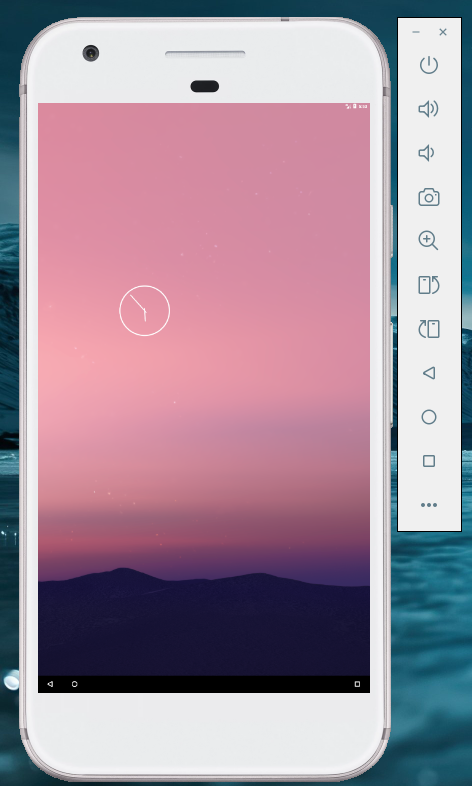
Now the next steps are:
- clean up android of all the un-necessary stuff like phone, contacts and so on
- flash the custom launcher made in the part 1 to start the e-reader at boot
- further tweaks, maybe performances?
The read was quite long, and the steps were so many I may have lost a few, but I hope you all enjoyed this!